
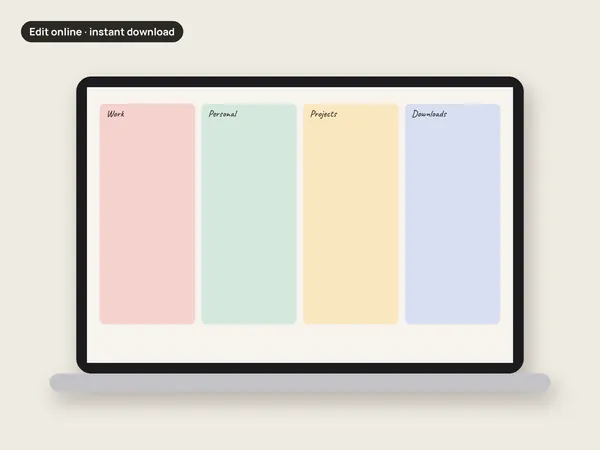
How to make yours
- Choose your screen and how many sections you want (2 to 8).
- Name and color each section: tap it, type the name, pick a color and how see-through it is.
- Add a background photo if you like.
- Download the PNG and set it as your wallpaper.
Want something for your phone too? Try the free phone wallpaper maker.
Guide: How to organize your computer desktop
Questions
What can I use it for?
Keeping a busy desktop tidy: sections for work, school, projects, photos and a to-do pile. Students use one per subject; freelancers one per client. It is a screen file only, nothing to print.
Which size do I need?
Choose your screen in the designer. On a Mac: Apple menu, About This Mac, More Info, Displays. On Windows: Settings, System, Display, Display resolution.
How do I set it as my wallpaper?
Mac: System Settings, Wallpaper, Add Photo, then choose the PNG and set it to Fill Screen. Windows: right-click the PNG, Set as desktop background.
Can I use Canva instead?
You do not need to. The sections, names and colors are edited right here, and the file comes out at your screen's exact size, which is hard to get right in other apps.
Can I put a photo behind the sections?
Yes. Tap the background to add a photo; the sections stay see-through so it shows.